Here you learn how to arrange the names of places you want to pin onto the map so you can quickly import a lot of them in one batch, rather than individually. It does require converting the text list to a csv, as explained below.
Start by arranging your places in separate text lists by category, for example, historic sites, hotels, shopping streets, restaurants. Then you can build individual map layers with those themes. The map pins for each theme layer can later be color-coded to provide visual distinction from other layers, as explained in part 5. You could alphabetize it or arrange it by region while still a text file, before importing. If a layer does not warrant a descriptive name you could just leave it untitled. This might sound a bit complicated but is much easier than adding places individually!
Add places to map: one at a time or in a batch?
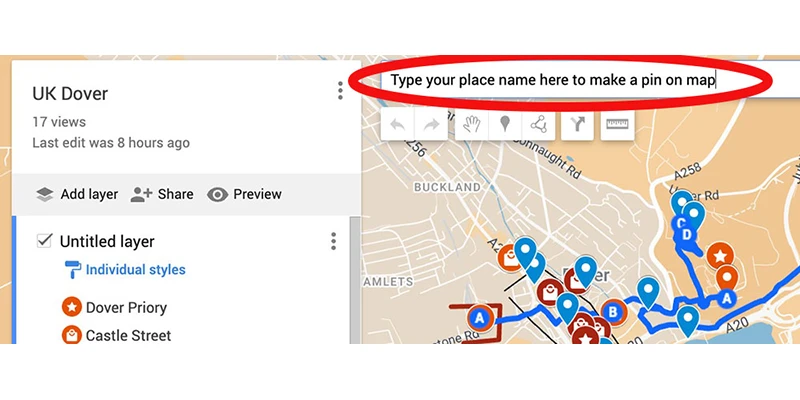
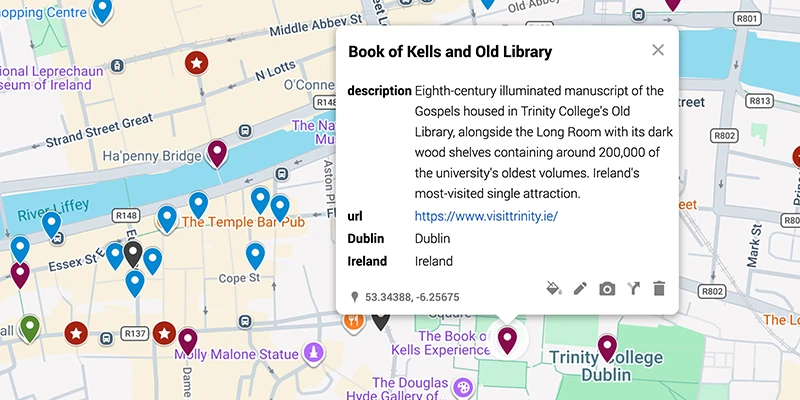
As explained just down below, it is best to import a group of places together in a batch. On the other hand, you can add places to the map one at a time, by typing the place name into the search bar at the top of the map, find the pin that appears in the map, click save to map. If a site is well-known, it might be listed as part of the map, so all you need to do is click that name on the map and a pin will open that you can add to list, often including links and descriptions. This is especially useful while you are traveling and want to add new discoveries you find through ongoing research or tips from other people, so you can update the map. Another beauty of GMM is that it is very easy to add more information during your travels.
Batch is Best
However, it can be time-consuming to individually import each single place to the map when creating the intial map. Rather than individually adding locations, it is much faster and more efficient to import a complete list of places all at once, adding many sights to the map with a single click.
Creating the batch list is explained below and can be summarized as follows: Write lists of places to visit in plain text by theme. Save each list as a csv file using Excel or other application as described below. Import the csv list to GMM where it will all automatically show up as points on the map.
How to make a batch using csv:
First, create plain text lists of all your desired sites to see, with the name, description and place – see below for how to format that.
On the other hand if all you want is a simple list of places without description you could leave that out, but it is still important to include the city name to help Google find the correct location, and description is useful.

Convert list into CSV
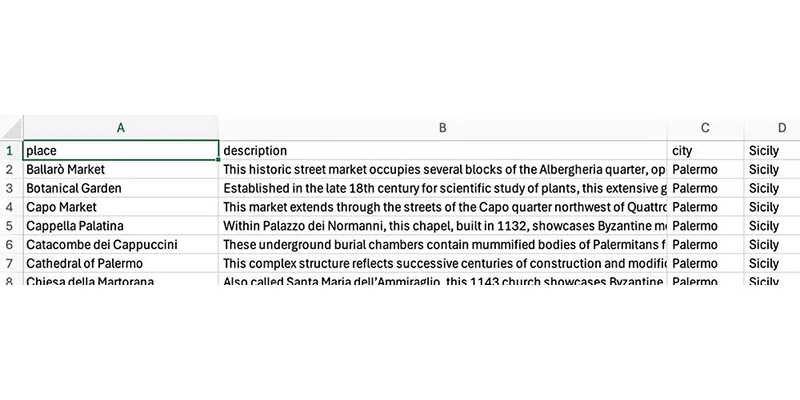
To import a batch list of places into GMM it must be in csv format (comma-separated values). Above you see an Excel spreadsheet which you need to save as a csv file. Don't grab the spreadsheet by its menu bar and try to drag that into the map. Instead you locate the actual file using your computer finder or explorer and drag that file into the map, as explained in the next page.
First you build a text list then convert it to csv.
Create your list in plain text, listing each place, including description, location and other elements you want included, in its own paragraph. The list then consists of a series of paragraphs, one per place. In this example, each line includes place name, description, city name and region.
The first paragraph of text should be labels of the column headings, with separators there also, such as in the above example, place; description; city; Sicily . This is not only helpful, but mandatory if any element such as description contains more than a dozen words, as GMM will reject that file. GMM wants the first line to have limited number of words in each cell. There is no limit to the number of words on the following lines.
Use a separator in the text, which could be a comma, tab or semicolon, where you want those columns to form. Because the description you have captured probably has some commas, it is beter to use a semicolon as the separator. As mentioned earlier, it is useful to include a description so you can read later about what you are looking at, and the city name helps Google locate the pin correctly. With that separator the resulting spreadsheet will have three columns, for place name, description, and location.
Piazza Marina; This large square contains the Giardino Garibaldi, a public garden with enormous ficus trees creating shaded walkways and seating areas.; Palermo; Sicily
Use Excel to convert text to csv or some other spreadsheet tool as explained next.
With Excel, for example, an easy way to convert the text list into csv issue is start the Excel app, then choose open, and navigate to that text file, selecting it. When the csv opens, save it as csv, then check to make sure all information is in the proper cells, making any needed corrections. Excel gives good control over editing.
Apple Numbers (a free app with Apple) can easily convert text into CSV format.
Format your text file with separators, such as semicolon, which will be used in this process to divide the text into desired columns.
Open that text file in Numbers, by selecting Open from top menu, then locate your text file in computer.
When file opens, select File > Export To > CSV from the top menu. / Save / Export
This will create a valid csv file.
Create a Google Drive if you don’t have already one.
You can easily convert text that uses separators into proper CSV columns within Google Sheets by using its Import or Split Text to Columns features. Here is how to do it: In this example we are using semicolons (`;`) as the separator, but you could use tab, comma or other value such as colon..
Upload text file to your Google Drive, with separators such as ; to delimit each column
This brings you to your Google Drive. Select the folder that has your text file.
Choose Upload and select your text file that uses semicolons as separators.
Click Insert
In the pop-up dialog, under Separator type, pick Custom.
Enter a single semicolon (`;`) as the custom separator.
Click Import data.
Google Sheets will automatically split the text into columns wherever a semicolon appears.
To download, choose File in top menu, select Comma Separated Values (.csv)
It will download to computer.
When you have prepared the text list with column separaters as explained above, use one of the various free AI apps, such as ChatGPT or Claude to convert it to csv. Open the AI, then tell it to create a csv for downolad from the following list, and paste your text list into that instruction. Wait for processing, then download the csv to your computer. Open the csv to see if there are errors, then correct them.