How to plan and take a trip using Google My Maps
Three of the biggest travel challenges are:
- Deciding where to go
- Planning for the trip
- Getting the most out of the journey
Creating and using a good map will help with all of this. The goal is to arrive in an attractive destination with enough preparation and tools to make it easy to have fun and not get too lost. This can be tricky when arriving somewhere for the first time, and even repeat visits will benefit from proper planning.
This website is filled with hundreds of Google My Maps about the many cities described here. You are welcome to use and copy any of them for your own use, as described below in a Quick tip and later in Share your map.
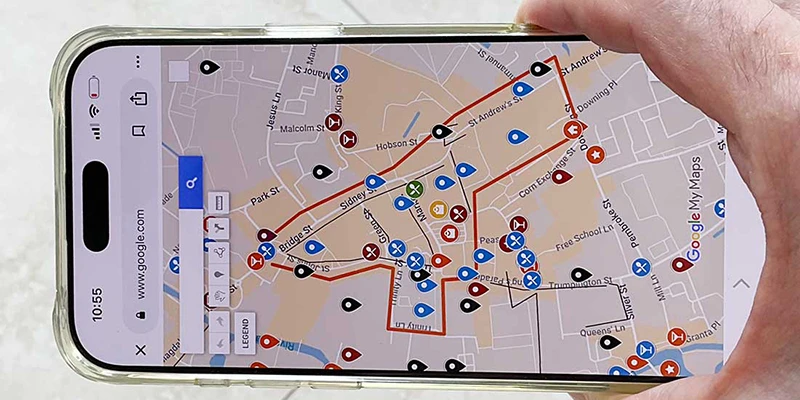
One of the best tools to help with all that is Google My Maps. It's like arriving with a collection of travel books in one place on your phone or tablet. Do your trip research, load it on your mobile device to carry while walking through town, then follow the on-screen digital dot to each place you want to see.
Make the Map
This section will help you do that by making a digital map for your phone or tablet that will efficiently lead you to the best locations, restaurants, shops, neighborhoods and experiences. Presto, you arrive in a strange city, look at your map, and get started exploring. Google My Maps will show you where to go and describe the sights so you will not get lost upon arriving in a town for the first time.
The digital map helps you follow a good route, and also enables you to get lost and wander around, then easily get back on track. Find that dot to discover where you are and decide where to head next.
And Get Lost
You definitely want to spend time simply wandering around going where impulse suggests, but it is also important to know something about what to see and do. You can have it both ways and double your fun: make lists, follow them, then meander. The combination of aimless stroll and curated route can add up to the perfect experience, discovering the best places and activities to enjoy based on your research and serendipity of unexpected discoveries.
The map will also suggest to you the best part of town to stay in, based on the cluster of attractions you have created in your research, as we explain in these pages. Hotels always claim they are in a central location but usually lie about it. When you have pinpointed attractions, best neighborhoods, shopping streets, museums, pedestrian zones and restaurants on a map, the center of urban gravity becomes obvious.
Talk to Strangers
While a good digital map can be very useful it is only one of many techniques for the savvy traveler. One of the best travel experiences is talking to local people, swapping stories and gleaning some practical information. Here too, your map can help! What better way to break the ice with a stranger than to ask for directions? Then you can show your map and ask for suggestions. You might find them making notes on the map for you, revealing their secret little places. Despite the prevalence of Google and other digital maps, Google My Maps is still relatively unknown, so locals are often amazed at what you have got on your device, and just might take an interest in you.
Our Strategies and Tactics
These pages are about how to do the research, compile lists of places and activities, place them into a mobile interactive map, then use the digital map to help explore your destination. This makes it easy and fun to get around without getting lost or wasting time, money and energy.
Quick tip: you can import map information from other people who are willingly sharing them. Find a good map made by others who are sharing. Click in their map's 3 dots at top in left column, then choose Export as KML and download the file. Note that Google My Maps gives you a .kmz file unless you tick the box for "Export as KML instead of KMZ" — either format imports correctly, so it does not matter which you get. Create new map, or add to your existing map, then click import in the layer panel and drag the file to that layer, which places all the information on your map.
With six pages of instruction here, and some computer requirements, it might seem like this is a difficult thing to do, however:
EASY TO CREATE AND VERY USEFUL
1. Make a list of places. 2. Bring it into the map. That's it. (with some tweaks)
Quick elaboration of those steps:
- Make a list of places to visit, arranged in a plain text column
- Convert the text list to csv, a comma-separated value (that's easy)
- Open an empty Google My Map
- Drag the csv into the map
- DONE!
These pages guide you through that process with simple instructions.
An informative digital map on your phone is like carrying an entire library of travel information with descriptions of the sights and instructions on how to find them. This is not something you can purchase, because you have your own personal interests and travel goals, which you can easily load into the map, but you have to make it yourself.
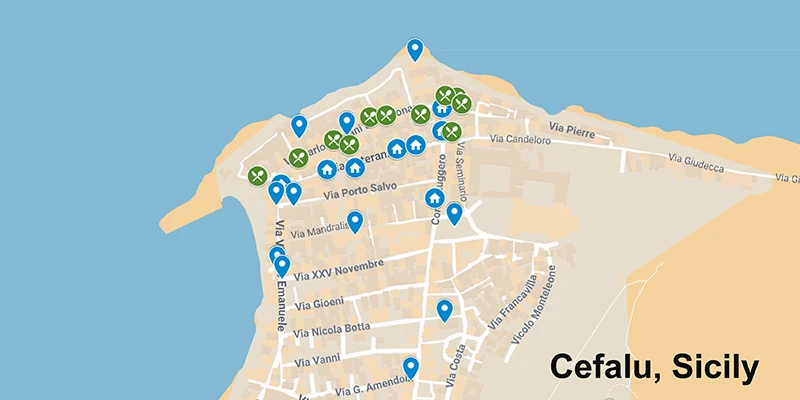
Examples of Google My Maps. You can open full size by clicking the square, top-right corner of map.
Brussels, Belgium
Todi, Italy
Other Tools
While this series of pages is all about researching, creating and using a good map let's recognize this is just one tool in your discovery and enjoyment of a place. Another essential tool is YouTube, with its unlimited amount of travel videos, such as my own. And Google Earth is super-useful in taking an informed look at a place before you go to help determine what parts of town are worth seeing and what to avoid. Talking to friends who have already been there is another opportunity. The map helps tie all this together, as that information can be included before and during your trip.
Google My Maps (GMM) was created by Google and is offered for free, based on Google Maps, but is far superior because you can add a lot of customized information which is easy to access. These descriptions act like a mini guidebook as you walk around, so you know where to go and understand what you are looking at.
The process described here might seem complicated at first, but we explain the steps clearly, and the final product of a customized informative map in your mobile device will be worth your efforts. GMM can give you total freedom along with extensive information to make your trip a total success. Now the only problem is having enough energy to walk to all these places on your digital list!
The steps involved:
Research list of places including brief descriptions.
Organize lists into themes, e.g. shops, restaurants, historic sites. Format the plain text lists as csv, comma-separated values.
Create a new map then batch import place lists, which will show up as "pins" on the map.
Stylize the places on digital map with colors and icons. Create walking route lines on map and shapes outlining highlights.
Advantages of Google My Maps over Google Maps:
It is surprising how most people are aware of Google Maps and use it frequently, but have never heard of Google My Maps. Here you will discover that GMM is far superior to Google Maps in planning and taking your trip.
Customization: GMM allows you to create personalized maps with custom pins, icons, and colors, making it easier to categorize locations at a glance. Google Maps only allows one emoji per map.
Multiple layers: GMM lets you add up to 10 layers per map, which can be toggled on and off to limit the view and avoid an overwhelming number of locations.
Route visualization: GMM allows you to add routes to visualize your trip for road trips or walking tours.
Importing locations: With GMM, you can import location pins and routes from spreadsheets or other Google My Maps.
Add information: With GMM you can include links, photos, videos and text description for each place.
Shareability: You can share with others by email and put it your website or social media.
There are a few benefits of regular Google Maps:
Google Maps does provide more detailed information about location of businesses, helpful in looking for nearby restaurants, hotels, museums, shops. etc. It is useful to have this app open when using GMM, so you can toggle back and forth as needed. There is a link to "View in Google Maps" automatically included in most of the pins you create.