This page describes how to make your custom map, then add lists of places. Be sure to complete all the previous steps -- research and organize your information into lists converted to csv -- before beginning this phase of the operation.
To make a new map, use your computer and sign in to Google My Maps with this link. There you can open a new, empty map.
You need to have or create a google account. Follow steps to create a new map, name and save it. Name it using the place name of your travel location. You could make a map for an tire country, say if you wanted to plot out location of various cities, but in this excercise we are making a map for a city or town.
It would be helpful for you to do that right now so you can follow along with these instructions and start building a basic map. That will provide graphic illustrations of the various steps described here.
As you work on the map importing text and creating layers, it is important to save it as you revise things, which you do by clicking on the map name and choose save when the dialouge pops up. Without saving, your changes after the previous save will be lost
On GMM create new layer then click import.
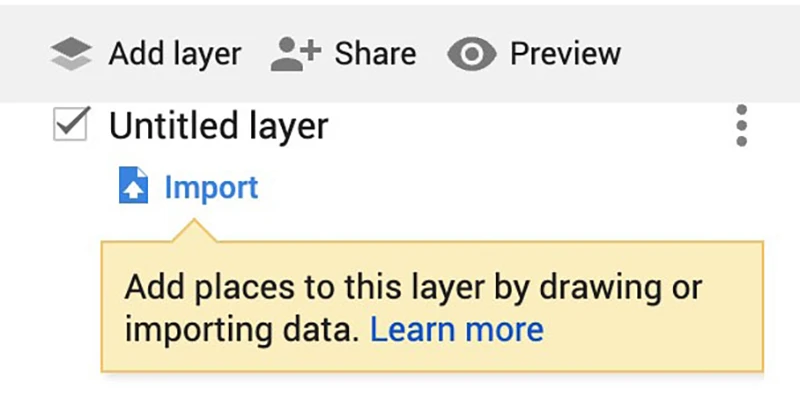
Click the add layer button, and a new layer will be added to your map, listed in the sidebar. Then click the import label that automatically is listed in the new layer.
You could "Browse" to locate the file for import, but it is easier to just drag the csv file from your computer directly to that import window. To do that, select the file as listed in your computer finder window and drag that file. After you drag the csv into the import window a menu pops up requesting you to “Choose columns” and select boxes for items to include. Check desired items, then click “continue.”
A second request is made asking which item should be column title. Chose one for your preferred titled (usually the first item). Click “Finish” which will import that csv into the map. Each place will have its own pin locater, which will also display the description when you click it.
You can add up to 10 layers per map, which can be toggled on and off to limit the view and avoid an overwhelming number of locations. Each layer can have an astonishing 2,000 places (pins) but that would likely be unmanageable. Best to organize your places into various layers with their own themes.
Sometimes you get an error that a few rows “couldn’t be shown” so click “Open data” and fix them. Often all you need to do is select and double-click on the error and on the description, which can fix the problem. Another fix is to add the city name in that error panel as part of the place name. Errors can be caused by using a name for a place that does not exist, or is too broad an area to place a pin. You might try deleting that erroneous place and enter it manually.
Some items might show up on the other side of the world because they were poorly labelled, or describe a common site. Zoom out on your map to find those items and re-label specific to your location by adding the city and country name to the place name. If that stray marker still will not move, delete it and manually re-enter the place, including the city name.
If there are too many of the above errors, delete the layer from the map and fix it in your csv file. Add the city and country name after every place name, then upload that corrected csv to the map again. This should fix a bunch of problems at once.
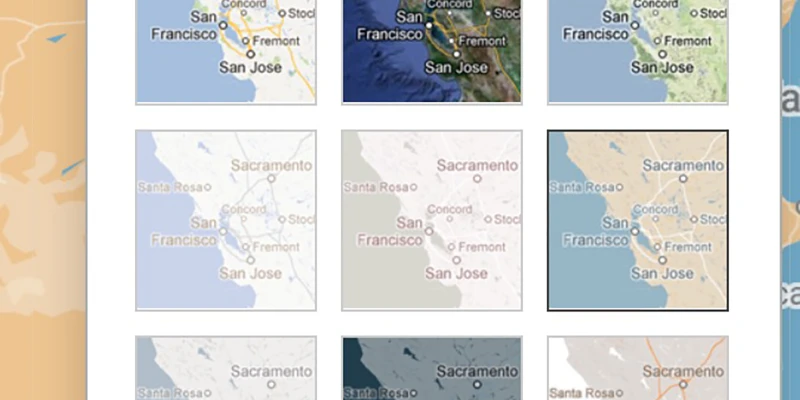
There is a choice of different graphic style of map you can pick from, by clicking the "Base map" labvel on bottom of the sidebar. This will open a grid of various map styles, some with more background information of roads and such, others more plain. I prefer the plain brown format at middle of right column. Take your pick, which can be easily changed later.
Be nice and share your work freely with the world. This is not required, so you could keep it secret to yourself, but it goes both ways. If more people would share, then you could find maps made by others that might be useful to you, which you can import, as explained below.
If you don’t manually select share in the map information, nobody else will be able to find the map, and you won’t even be able to email a link to friends. It is easy and helpful to share the map with the world.
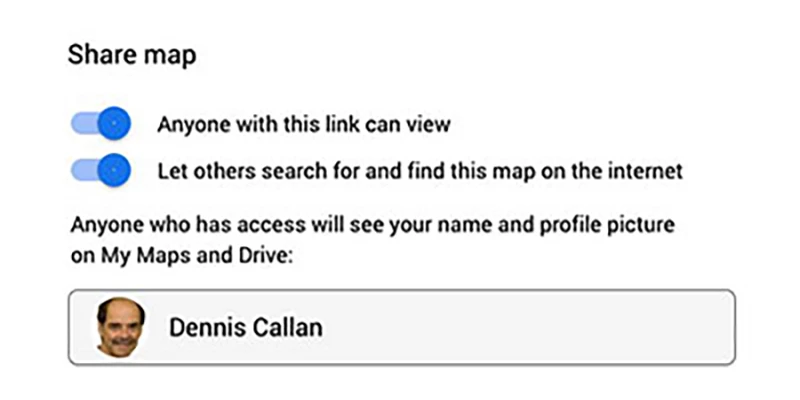
In the map you want to share, at the top of the column on the left side just above your list of places, click the Share icon. Select how you want to share your map. Follow the onscreen instructions. It’s best to toggle on both choices so all can have access to the map. Be generous, and you will also benefit from others who share their maps as explained below.
Import map information from others:
Map data from one map can be imported into another map: Find a good map which has useful info made by others who are sharing. Click in their map’s 3 dots then choose Export as KML (instead of KMZ) and download kml file. Open new map, or add to your existing map. Click import in a fresh layer. Drag kml file to that layer. The map should populate with all of that information, with pins, lines, etc. You can modify that new data, changing icons, colors, names and other attributes.
Anyone making a map can agree to share it, by clicking in the share button and turning on sharing. This gives you permission to use their data. It can be a challenge to find these other maps but keep on searching.
To embed map on your website:
Open in Google My Map. Click three buttons in top of list panel on left side of frame. Select embed on my site. Copy code. Paste into code of your website.